Whether you are a fan tired of a pushy creator or a creator dealing with a difficult subscriber, blocking is your direct off switch on OnlyFans. It is quick to do, but a few details matter: blocking is not the same as restricting, and it does not undo a payment. Here is how to block someone on OnlyFans in 2026, and what to expect after you do.
How to block someone, step by step
The process takes a few seconds. Open the person's profile, or the direct message thread with them, and tap the three dot menu. Choose the block option and confirm. You can block from either the profile or the chat, and it applies immediately. If the issue is abuse or a scam rather than just annoyance, use the report option in the same menu as well, so OnlyFans can act on the account, something we cover in how to spot an OnlyFans scam.
What blocking actually does
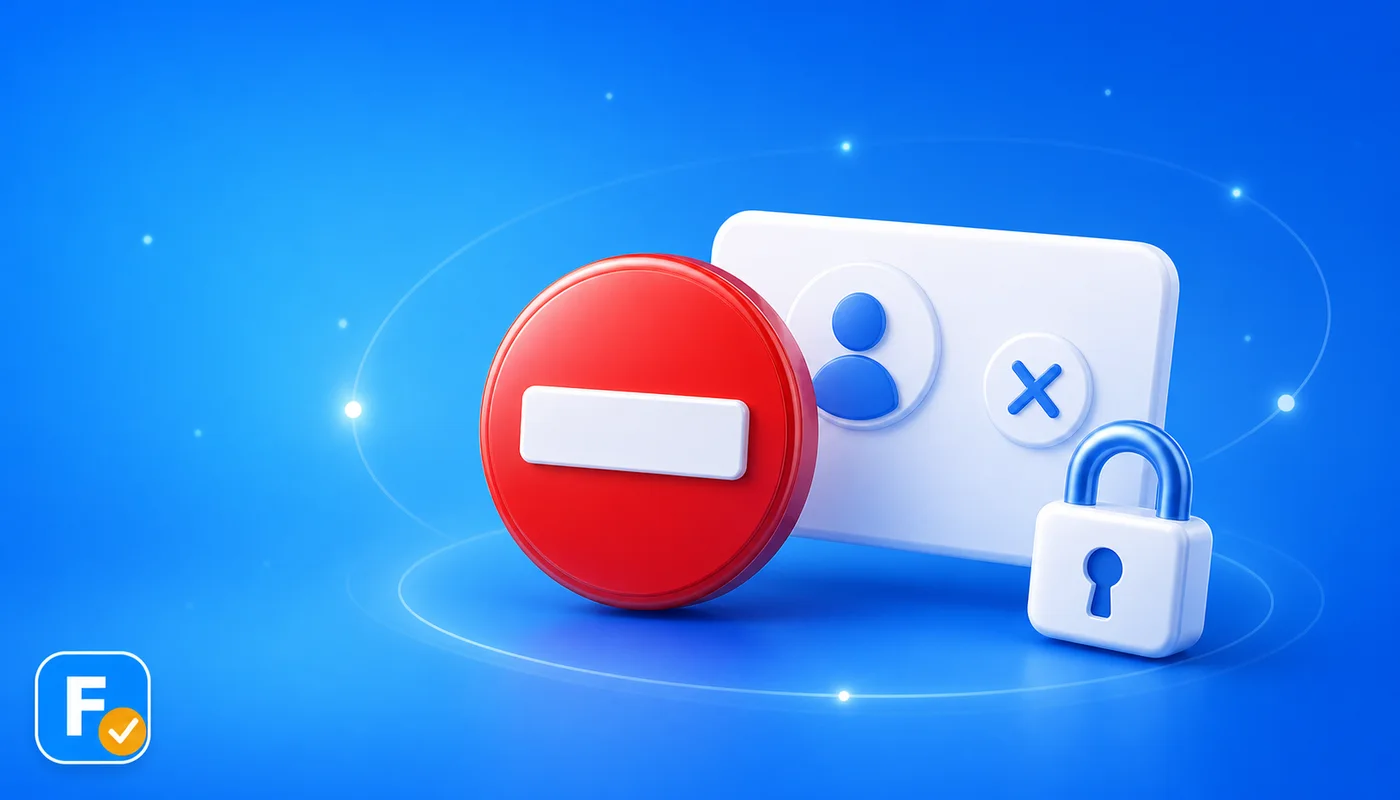
Once you block someone, they can no longer message you, interact with your content, or, in most cases, see your profile or subscribe to you. For a creator, blocking a fan cuts off all contact from that account. For a fan, blocking a creator stops their messages reaching you. The block is silent: the platform does not send a notification announcing it. You can reverse it later from your blocked list if you change your mind.
Block vs restrict, and reporting abuse
It helps to know the difference between the tools:
- Block: cuts off all contact and interaction both ways.
- Restrict: a lighter option that limits or hides someone's comments without fully blocking them.
- Report: flags the account to OnlyFans for breaking the rules, separate from blocking.
If someone is harassing you, threatening you, or pressuring you for money, block and report, and remember that real threats can also be a matter for the police. Our guide on whether OnlyFans is safe goes deeper on staying safe.
💡 Not sure a creator is worth it? Read real reviews before you subscribe.
Browse reviewsDoes blocking refund or cancel a subscription?
No. Blocking a creator stops contact, but it does not cancel your subscription or refund what you already paid. If you want the billing to stop, you have to cancel the subscription separately, which we walk through in how to cancel an OnlyFans subscription. So if a creator has crossed a line, the clean exit is usually both: cancel the subscription so it stops renewing, and block the account so the contact ends.
Blocking is your off switch for contact. Cancelling is your off switch for billing. Use both when you mean it.
The best way to avoid needing the block button is to choose carefully before you subscribe. Search any creator on FanChecked, read verified reviews from real subscribers, and follow the official link. Free, no login required.
Frequently asked questions
How do you block someone on OnlyFans?
Open their profile or your chat with them, tap the three dot menu, and choose block. It applies immediately and works whether you are a fan or a creator.
Does the person know you blocked them on OnlyFans?
No notification is sent announcing the block. They may notice they can no longer message or interact with you, but the platform does not tell them directly.
What is the difference between block and restrict on OnlyFans?
Blocking cuts off all contact and interaction both ways. Restricting is lighter and mainly limits or hides someone's comments without fully blocking them.
Does blocking a creator cancel my subscription?
No. Blocking stops contact but does not cancel billing or refund you. To stop charges you must cancel the subscription separately.
Note. This guide reflects publicly available information about OnlyFans as of 2026, and menu options can change. Always follow the current steps on the official site. FanChecked is an independent review platform and is not affiliated with, endorsed by, or sponsored by OnlyFans.